
Settings you can find, in words you can read.
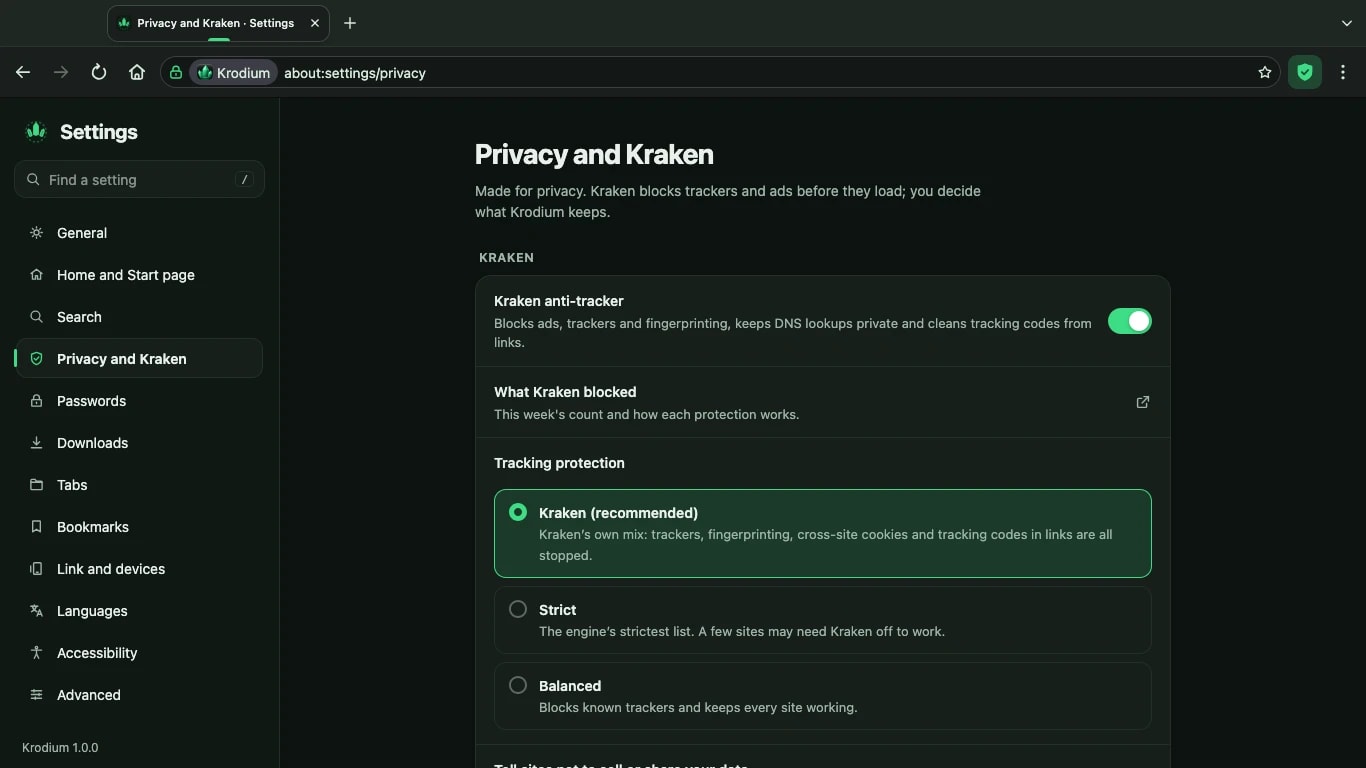
Krodium Settings opens in a tab, with one page for each topic, such as General, Search, Privacy and Kraken, Passwords and Downloads. Type in the search field to jump straight to a setting.
Available now
Settings
In detail.
One page per topic
Each topic has its own page, and larger ones have sub-pages, so nothing hides at the bottom of a long list.
AvailableSearch that finds things
Settings search matches the start of words and shows each setting once. Press / to start typing.
AvailableSaved passwords
Find, show, copy, edit and delete saved passwords, add one with a generated password, and import or export a CSV file. Your device sign-in or a primary password unlocks them.
AvailableAddresses and cards
Saved addresses and payment cards for filling in forms, each with its own page.
AvailableToolbar
Show, hide and reorder the toolbar buttons from Settings › General › Toolbar, and turn the bookmarks bar on or off.
AvailableLight and dark
Krodium follows your Mac's light or dark appearance, and so do the sites you visit.
Available
Good to know
Settings arrived in this form in version 1.0.
Download
Free for Mac and Windows. Ready in two minutes.
Krodium 1.0.2 for Macs with Apple silicon, macOS 11 or later. 115 MB. No account needed.